

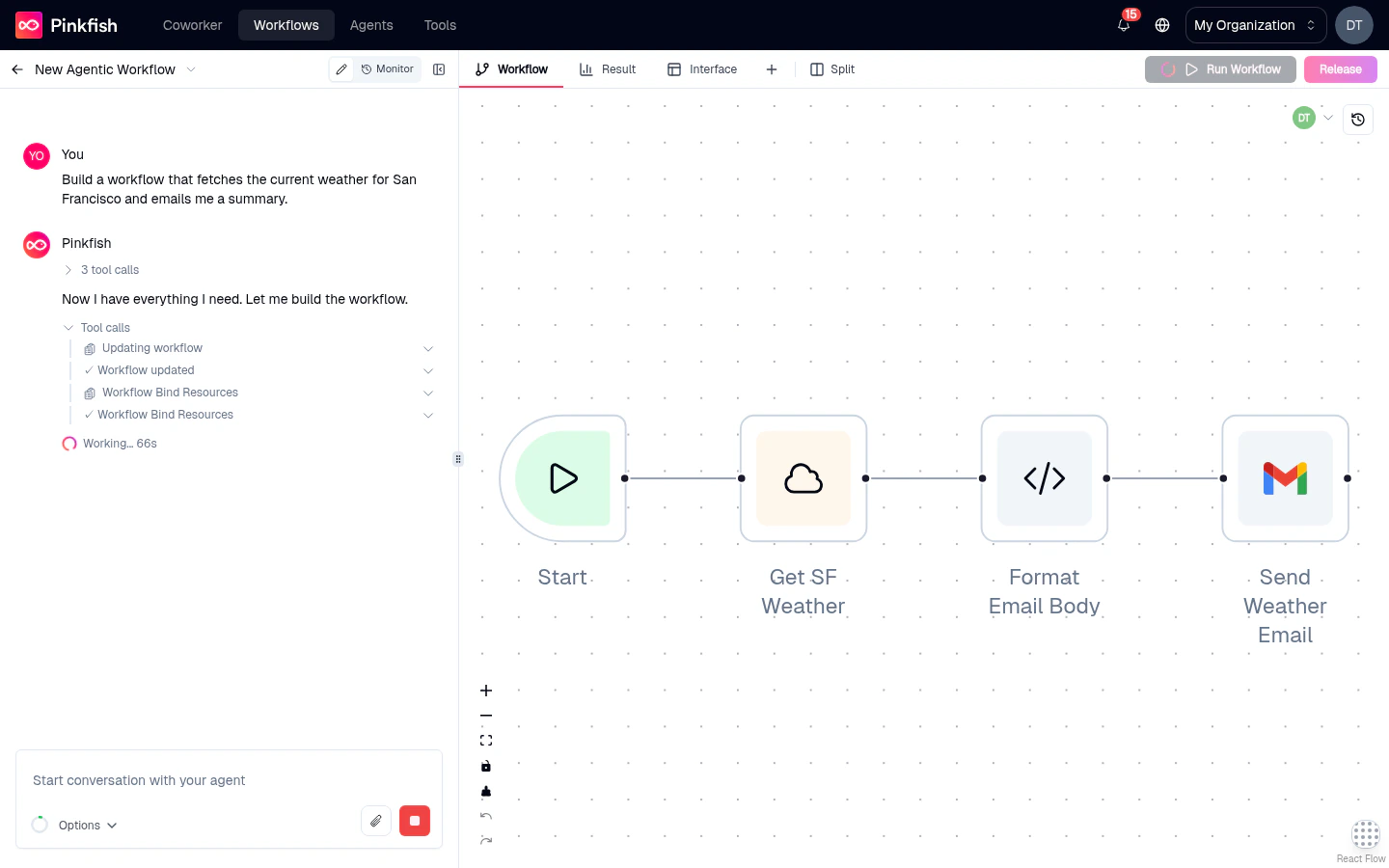
The three panels
Every workflow in Agent Mode has the same layout:Chat (left)
The coding agent that builds, edits, and explains your workflow on demand.
Canvas (center)
The infinite node-graph where your workflow lives. Drag, connect, inspect.
Right pane (tabs)
Workflow, Result, Interface, Code, and Log — pin and rearrange the tabs you care about.
Editor vs. Monitor
Agent Mode has two view modes, switched from the top of the editor:- Editor — the authoring experience described above.
- Monitor — the run-history view. Replaces the chat panel with a list of past runs and the canvas with a read-only execution view. See Monitor tab.
Build a workflow in 30 seconds
1
Create a workflow
From the Workflows library, click New Agentic Workflow. An empty canvas opens with a single Manual trigger and the coding agent chat ready on the left.
2
Describe what you want
Type a prompt like “When a Gmail email arrives with ‘invoice’ in the subject, extract the amount and add a row to my Google Sheet”. Press Enter.
3
Let the agent build
The agent adds a Gmail trigger, a parsing node, and a Google Sheets node, wired together. It explains what it did in the chat.
4
Run it
Click Run Workflow in the tab bar. The canvas lights up with live node status. Check the Result tab for the final output.
5
Release
Once a run succeeds in live mode, click Release to promote the draft into a versioned snapshot that the live Gmail trigger now uses.
The full feature set
Canvas & nodes
Canvas
Pan, zoom, connect, undo — the mechanics of the infinite workspace.
Adding nodes
The palette browser with Nodes, Triggers, and Interface tabs.
Node types
Every executable, control-flow, and special node you can place.
Triggers
Manual, API, schedule, email, app triggers, and events.
Interface builder
Give your workflow a user-facing form and results page.
Sticky notes & canvas
Annotate and personalize the canvas.
Working with the right pane
Editor tabs
Workflow, Result, Interface, Code, and Log.
Split view
Show two tabs side-by-side for faster debugging.
Running, iterating, shipping
Running a workflow
Manual runs, input dialogs, batch runs, auto-heal.
Mock mode & pinning
Iterate without burning real tool calls or re-running expensive steps.
Releases & versions
Promote drafts to live, compare versions, restore history, publish as a template.
Monitor
Inspect every past run — inputs, outputs, logs, agent reasoning.
Workflow administration
Actions menu
Share, duplicate, tag, describe, and configure resources.
Coding agent chat
The AI-powered authoring surface.
Real-time collaboration
Multiple editors can be in the same workflow simultaneously. You’ll see other users’ avatars in the header and their live cursors on the canvas as they work. Edits sync in real-time — no “someone else is editing” errors, no merge conflicts. See Canvas — Collaborating on the canvas for what’s shared in real time (cursors, node dragging, presence) versus what stays local (selections, edits, zoom).Agent Mode vs. Guided Mode
Most new workflows should use Agent Mode. Guided Mode remains supported for existing workflows and for the simplest use cases.
Where to start
I'm new — build my first workflow
Open the chat and describe what you want.
I want to understand the canvas
The visual mechanics: dragging, connecting, zooming.
I need to browse node types
The full catalog of what you can place.
I want to run and debug
Executions, mock mode, monitor.