

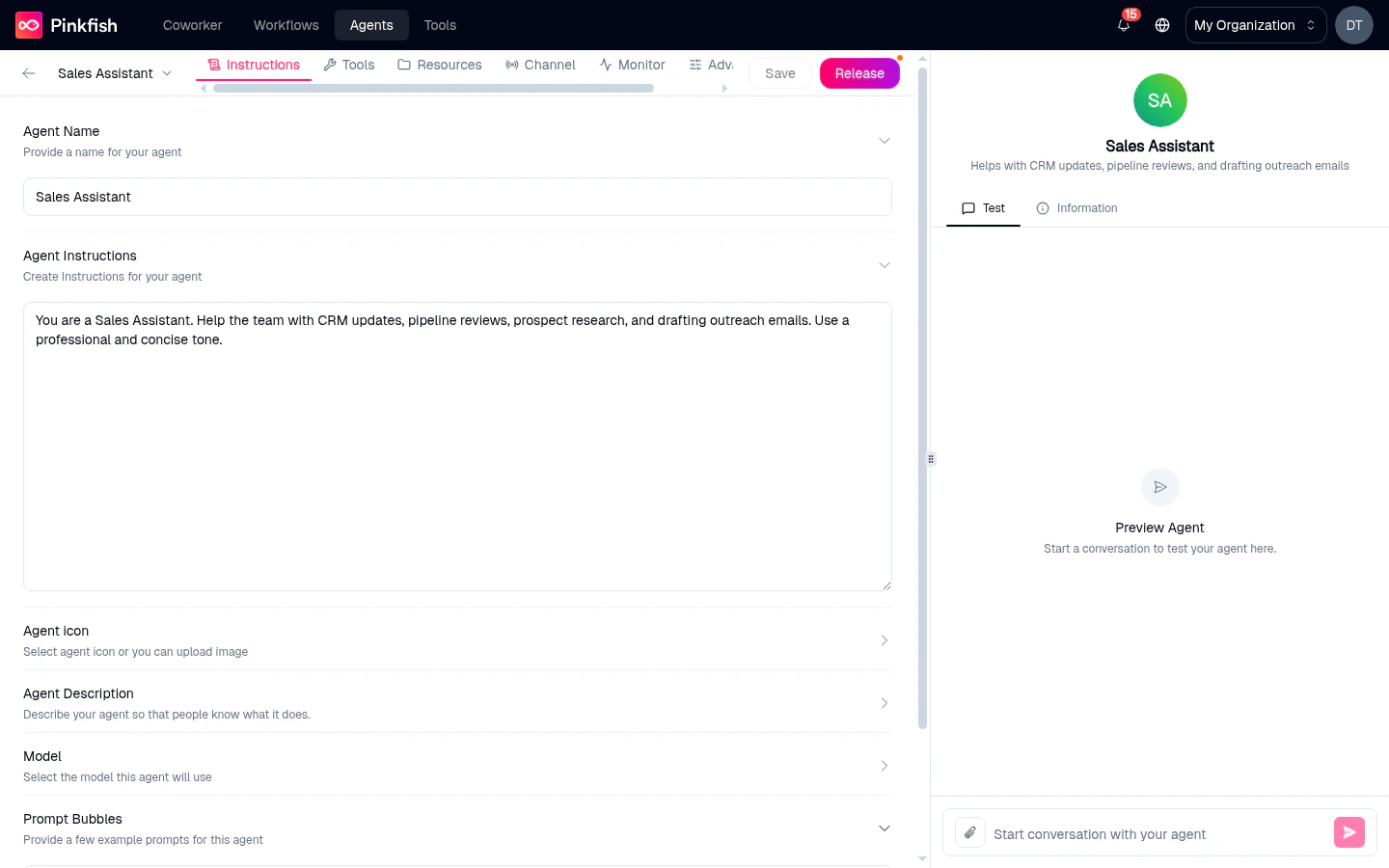
Agent Name
Required. The display name users see in Coworker, in the@-mention picker, and in every chat transcript.
- Placeholder: My Agent
- Keep it short and human — “Sales Assistant”, not “Sales_Assistant_v2_final”.
Agent Instructions
Required. The system prompt that defines how the agent behaves — role, scope, rules, tone, tools it should prefer, and any do-not-do guardrails. The placeholder offers a starter template along the lines of:Role / What You Do / Rules — You are an AI assistant specialized in [insert domain or function, e.g. IT service management, HR onboarding, customer support]…Tips that tend to produce better agents:
- Lead with role and scope. One clear sentence that tells the model who it is and what problem it owns.
- List rules as bullet points. Models follow crisp constraints better than paragraph prose.
- Describe the tools it has. If you’ve attached Slack, Gmail, and a knowledge base, name them — the model decides which one to reach for faster.
- Say what to refuse. Explicit “when asked about X, politely redirect” rules stop off-scope conversations.
Agent Icon
Optional. A single-character / emoji / image icon shown next to the agent in lists and preview avatars. Click the section to open the icon picker.Agent Description
Optional but recommended. A short, user-facing summary of the agent.- Placeholder: Describe what this agent does and its main purpose
- Shown in the My Agents list and in the preview pane header.
Model
Required — but defaulted. The model that runs every turn of this agent’s conversations.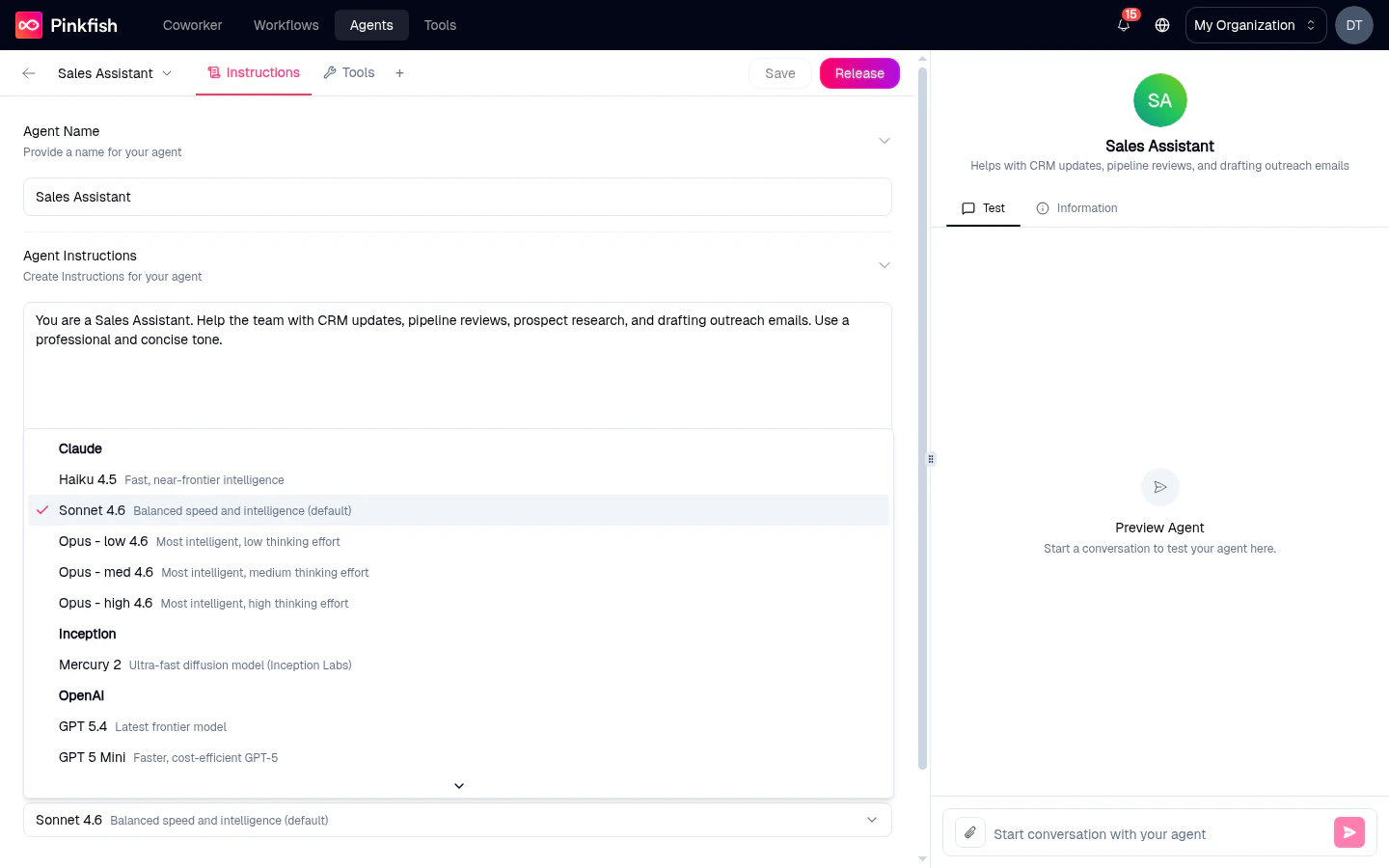
- Claude — Haiku 4.5 (fast, low-friction), Sonnet 4.5 (balanced, the default), Opus Low / Med / High (most intelligent; Low / Med / High controls thinking effort).
- Inception — Mercury 2 (ultra-fast diffusion model; good for narrow code tasks).
- OpenAI — GPT-5.4, GPT-5 Mini, GPT-5 Nano.
- Groq — hosted open-weights models (e.g. GPT-OSS-120B, GPT-OSS-20B).
- Fireworks — hosted open-weights models (e.g. Kimi-K2p5).
Changing the model does not auto-tune the system prompt. A prompt that works great on Sonnet may behave differently on Haiku or a non-Claude model. Always re-test in the preview after switching.
Prompt Bubbles
Optional. One-click conversation starters shown in the preview pane and in Coworker when your agent is selected.- Placeholder: Example 1 / Example 2 / Example 3
- One starter per line in the textarea.
- Keep them short — they render as small rounded buttons.
Required vs optional
You can save and release an agent with only Name + Instructions filled, but for anything user-facing, fill Description and Prompt Bubbles too.
Related
- Tools tab — pick which tools the agent can call.
- Agent Memory — long-lived memory across sessions.
- Save & Release — what happens when you click Save.