

Save
Clicking Save in the top-right of the builder writes the current form as a new draft. The draft number increments with each save.Save is disabled when:
- there are no unsaved changes, or
- the form has validation errors, or
- the agent is new and required fields (Name, Instructions) are missing, or
- a dashboard / long-running action is already processing.
Release
Clicking Release (the pink button next to Save) opens the Publish dropdown.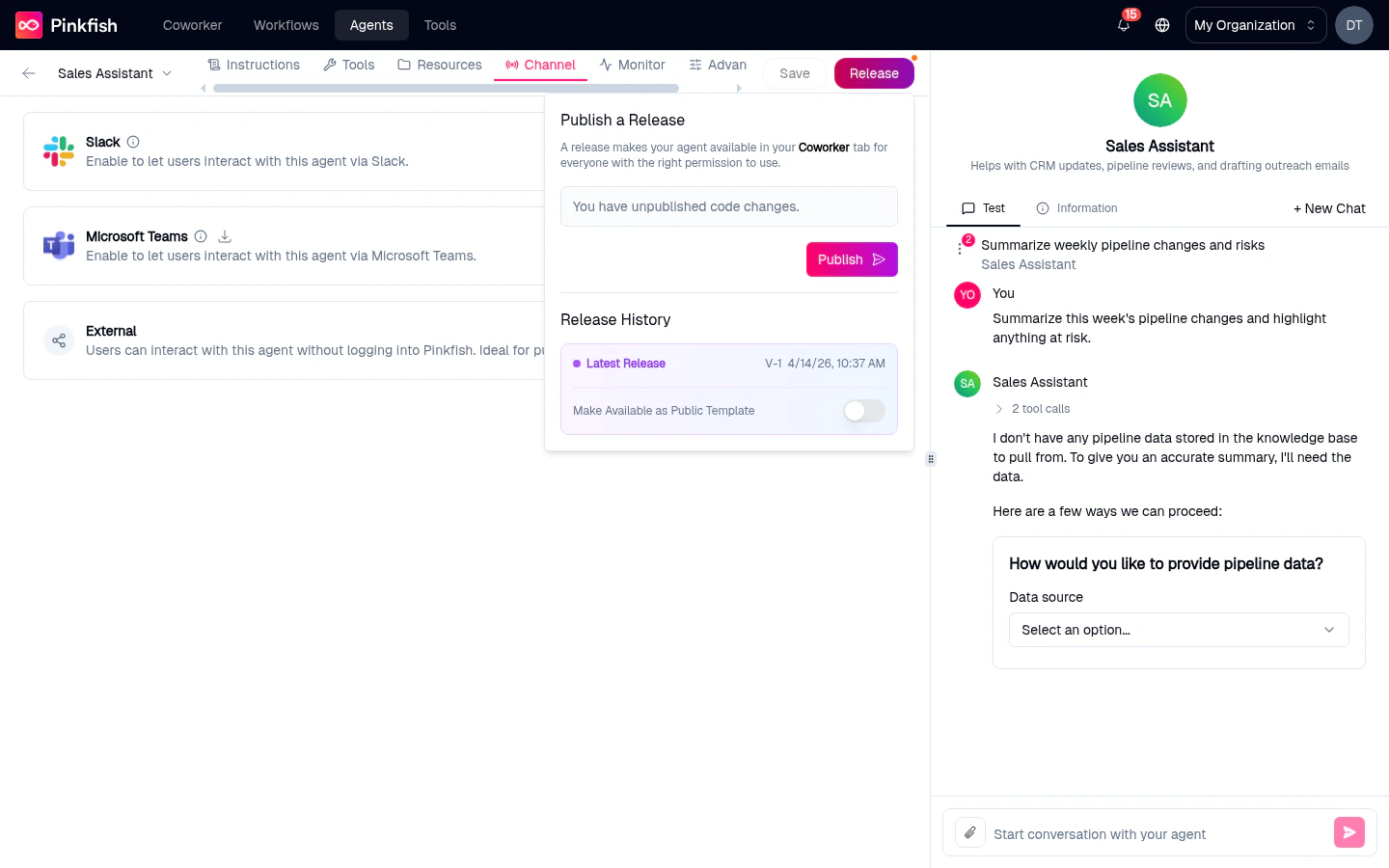
- Publish a new release — snapshots the current draft as an immutable version that becomes available in Coworker (subject to who the agent is shared with).
- See release history — every prior release with its version number and date.
- Roll back — pick an older release to mark it as the latest. (Release artifacts are immutable, so rolling back is really re-pointing at an earlier one.)
Success and no-change feedback
- Toast on success: “Release created successfully”.
- Toast when nothing has changed since the last release: “No new release was published since the agent didn’t change. Make changes to your agent and try publishing again.”
What a release does
“A release makes your agent available in your Coworker tab for everyone with the right permission to use.”When you release an agent:
- Coworker users who have permission see the latest release in the agent picker.
- Slack / Teams / External channels start routing messages to the new release.
- API callers using the agent’s API key get the new release.
Drafts vs releases at a glance
Status badges on the list page
The My Agents list summarizes this state as a badge on each row:
The builder itself shows a small indicator on the Release button when the current draft has unpublished changes relative to the latest release.
Typical lifecycle
1
Create and save
Fill out Instructions, click Save. Status on the list: Draft.
2
Test in preview
Chat with the draft in the right-hand preview pane until the behavior looks right.
3
Release v1
Click Release → Publish. Status: Published. The agent is now visible in Coworker.
4
Iterate
Edit instructions, tools, or resources. Save. Status: Unpublished Changes — Coworker users are still on v1.
5
Release v2
When happy, click Release → Publish again. Coworker flips to v2.
6
Roll back (if needed)
If v2 introduces a regression, use Release History to roll back to v1 while you fix things in the draft.
Things that need a release
Some features won’t work until you’ve published at least once:- API access for external callers — the API routes hit the latest release, not the draft.
API surface
If you prefer programmatic control, the same operations are available:
See the Agent Management API for details.
Related
- Agent Builder — where Save and Release live.
- Channels — who can reach published releases.
- My Agents — status badges summarize this state.